Quick Start Guide - API Proxy
WSO2 API Platform simplifies securely exposing existing services as managed APIs. It also allows you to manage all aspects of an API's lifecycle, security, throttling, and governance, so you can focus on service development.
In this tutorial, you will use API Platform to expose a service as an API proxy and publish it to the API Platform Developer Portal for application developers to consume.
Prerequisites
-
If you're signing in to the API Platform Console for the first time, create an organization:
- Go to API Platform Console and sign in using your Google, GitHub, or Microsoft account.
- Enter a unique organization name.
- Read and accept the privacy policy and terms of use.
- Click Create.
This creates the organization and opens the organization home page.
Step 1: Create a Project
- Go to API Platform Console and sign in. This opens the organization home page.
- On the organization home page, click + Create Project.
-
Enter the following details:
Info
The Name field must be unique and cannot be changed after creation.
Field Value Display Name Sample Project Identifier sample-project Description My sample project -
Click Create. This creates the project and takes you to the project home page.
Step 2: Create an API Proxy
- On the project home page, click Import API Contract under My APIs (Ingress).
- Click URL for API Contract, enter the following URL, and then click Next:
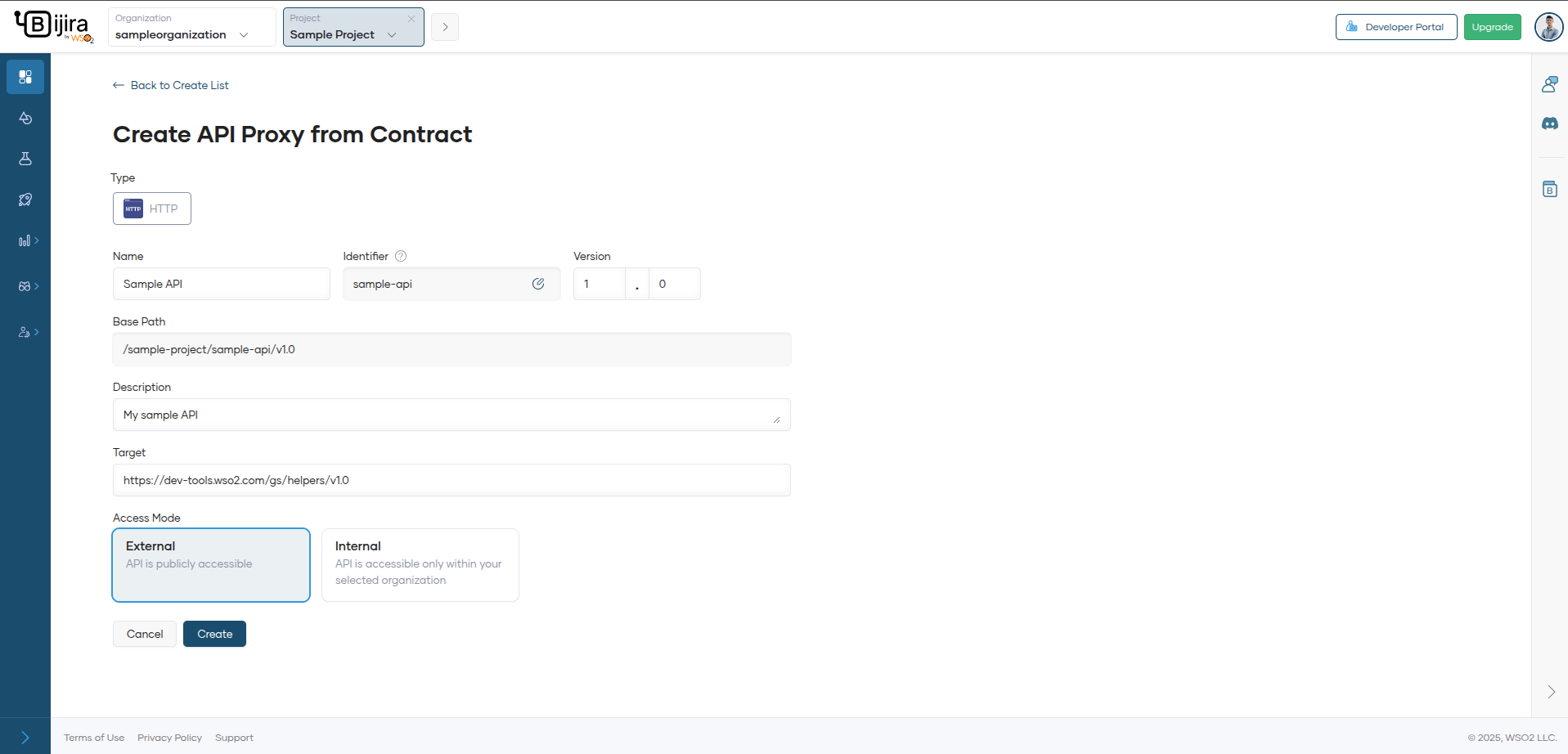
- Create API Proxy from Contract page will be opened. Click Create to complete the API proxy creation process.
/* replace this image with websocket option */
Step 3: Test the API Proxy
You can test the API proxy in the development environment before promoting it to production. API Platform provides the following options to test your API proxy:
- OpenAPI Console
- cURL
- API Chat
In this guide, you will use the OpenAPI Console.
-
In the left navigation menu, click Test and then click Console.
Tip
Since the API proxy is secured when deployed, you will need a key to invoke it. API Platform automatically generates a key when you navigate to the OpenAPI Console pane.
-
In the OpenAPI Console pane, select Development from the environment drop-down list.
- Expand the
GET /uuidmethod and click Try it Out to test it. -
Click Execute. You will see a response similar to the following:
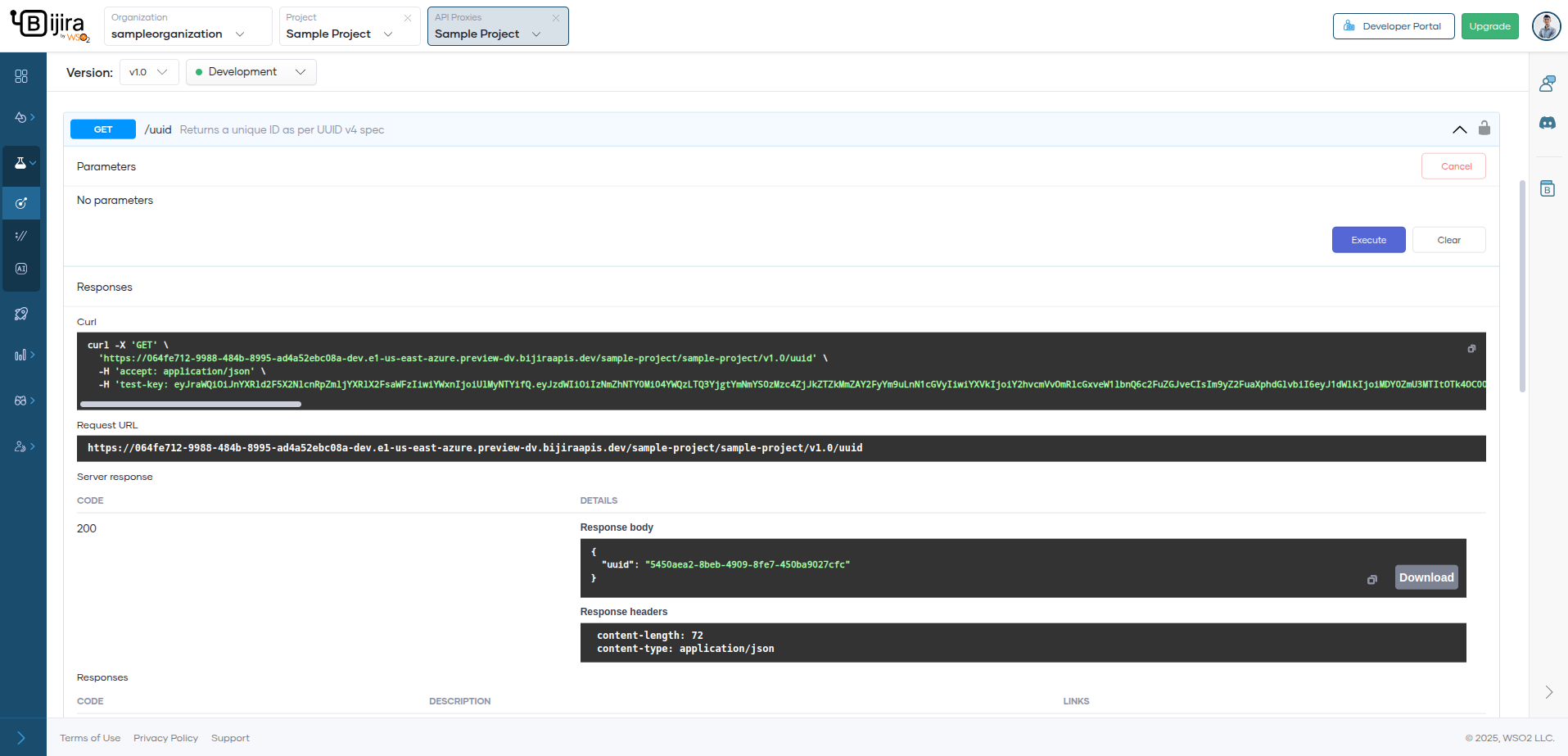
This indicates that your API proxy is working as expected.
Step 4: Promote the API Proxy to Production
Once you verify that the API proxy is working as expected in the development environment, you can promote it to production.
- In the left navigation menu, click Deploy.
- In the Development card, click Promote.
-
In the Configuration Types pane, select the option Use Development endpoint configuration and click Next.
Tip
If you want to specify a different endpoint for your production environment, you can make the change in the Configuration Types pane.
The Production card indicates the Deployment Status as Active when the API proxy is successfully deployed to production.
If you want to verify that the API proxy is working as expected in production, you can test the API in the production environment.
Now that your API is deployed in both development and production environments and can be invoked, the next step is to publish it so that consumers can discover and subscribe to it.
Step 5: Publish the API Proxy
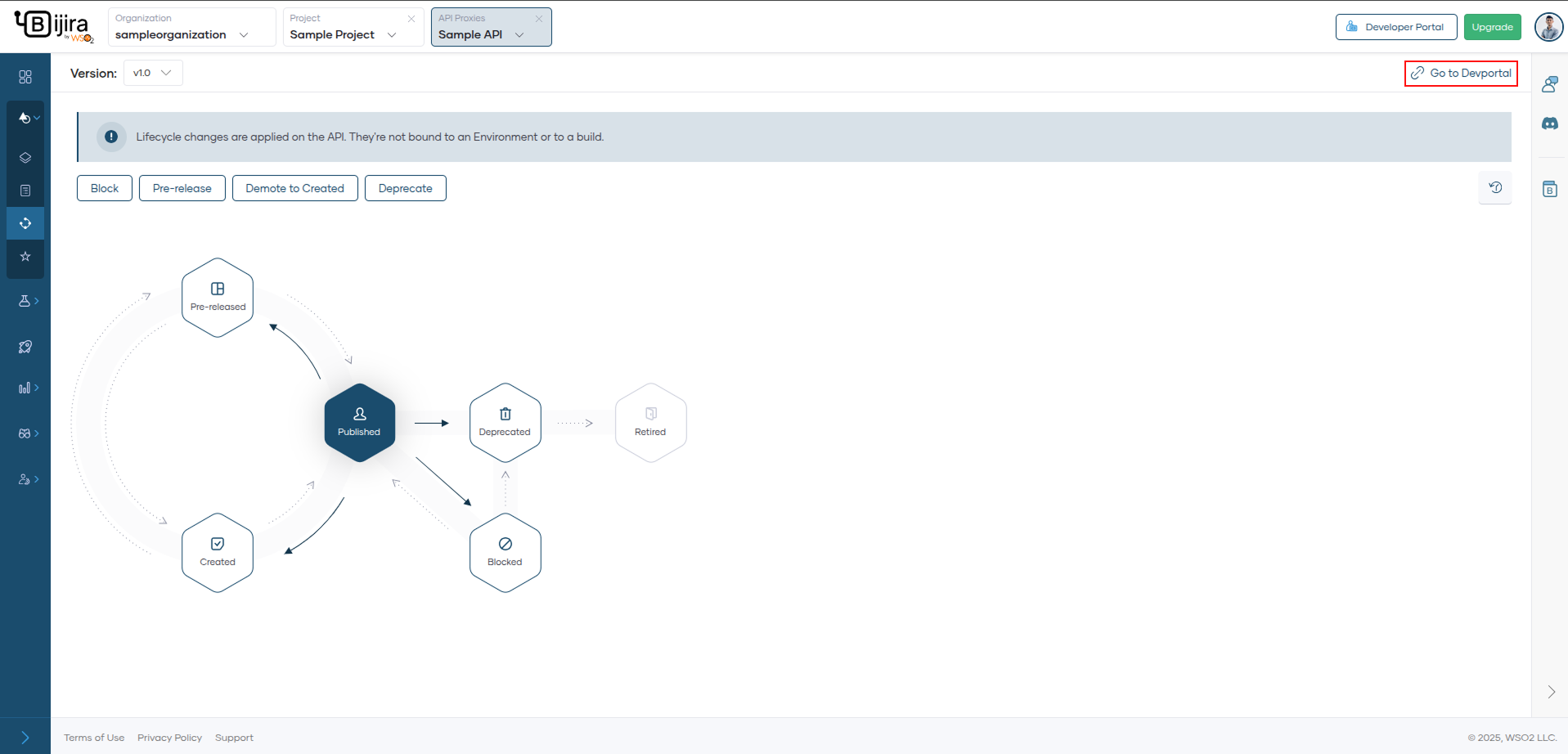
- In the left navigation menu, click Develop and then click Lifecycle. This opens the Lifecycle page, where you can see the different lifecycle stages of the API. The current lifecycle stage is Created.
- Click Publish.
- In the Publish API dialog, click Confirm to proceed with publishing the API with the specified display name. If you want to change the display name, make the necessary changes and then click Confirm. This changes the API lifecycle state to Published.
You can observe that the API lifecycle stage has changed to Published. Now the API is available for consumption. API consumers can consume the API via the API Platform Developer Portal.
Step 6: Invoke the API
To generate credentials for the published API and invoke it via the Developer Portal, follow these steps.
- In the Lifecycle Management pane, click Go to DevPortal. This takes you to the Sample API published to the API Platform Developer Portal.
-
Subscribe to the API and Generate credentials.
- In the Developer Portal left navigation menu, click Applications.
- Click Create.
- Add a sample application name and click Create. This will create a new application. Click on the application name and it will navigate you to the application's home page.
- Click Subscribe to more APIs under Subscribed APIs section. This will navigate you to the API proxy listing page.
- From the respective API card, choose the Application and click Subscribe. Now your application is subscribed to the published API with your selected subscription plan.
- Open the created application by selecting Applications from the left menu, and click on the application name.
- In the Application detail banner, click Manage Keys. This opens the Manage Keys page.
-
On the Manage Keys page, select either the Production or Sandbox tab based on your requirement.
Info
Sandbox keys can only be used in the sandbox environment.
-
Click Generate and wait for the keys to be generated. If you want to configure Advanced Configurations, click on the Modify button once the keys are generated and configure the values. API Platform generates new tokens and populates the Consumer Key and Consumer Secret fields.
- Close the dialog.
- Click Generate to generate an access token that you can use to invoke APIs. Copy the generated access token.
-
Invoke the API:
- Go to the APIs listing page using the left navigation menu.
- Click on the API to open your API.
- Click Documentation to open the swagger definition of the API.
- Select the API resource that you want to invoke.
- Paste your copied access token with following format:
Bearer <ACCESS_TOKEN> - Click Send API Request.
Now you have successfully created, deployed, tested, and published an API proxy using API Platform.