Configure Azure Active Directory (Azure AD) as an External Key Manager
In organizations leveraging Microsoft Azure Active Directory (Azure AD) as a key manager, integrating it with API Platform offers powerful API access control. This control hinges on the use of API scopes. That is, it enables the restriction of access to a designated group of users. This document guide you step-by-step to configure Azure AD as your external key manager.
Prerequisites
Before you try out this guide, be sure you have the following:
- An Azure Active Directory account: If you don’t already have one, setup an Azure Active Directory account at https://azure.microsoft.com/en-gb/.
- Administrator rights to your API Platform organization: You need this to configure the Azure AD account in your organization.
Step 1: Add Azure Active Directory as an external key manager in API Platform
Follow the steps below to add Azure AD as a key manager in API Platform:
- Sign in to the API Platform Console at https://console.bijira.dev/.
- In the left navigation menu, click Settings.
- In the header, click the Organization list. This will open the organization level settings page.
- On the Key Managers tab, click + Key Manager.
-
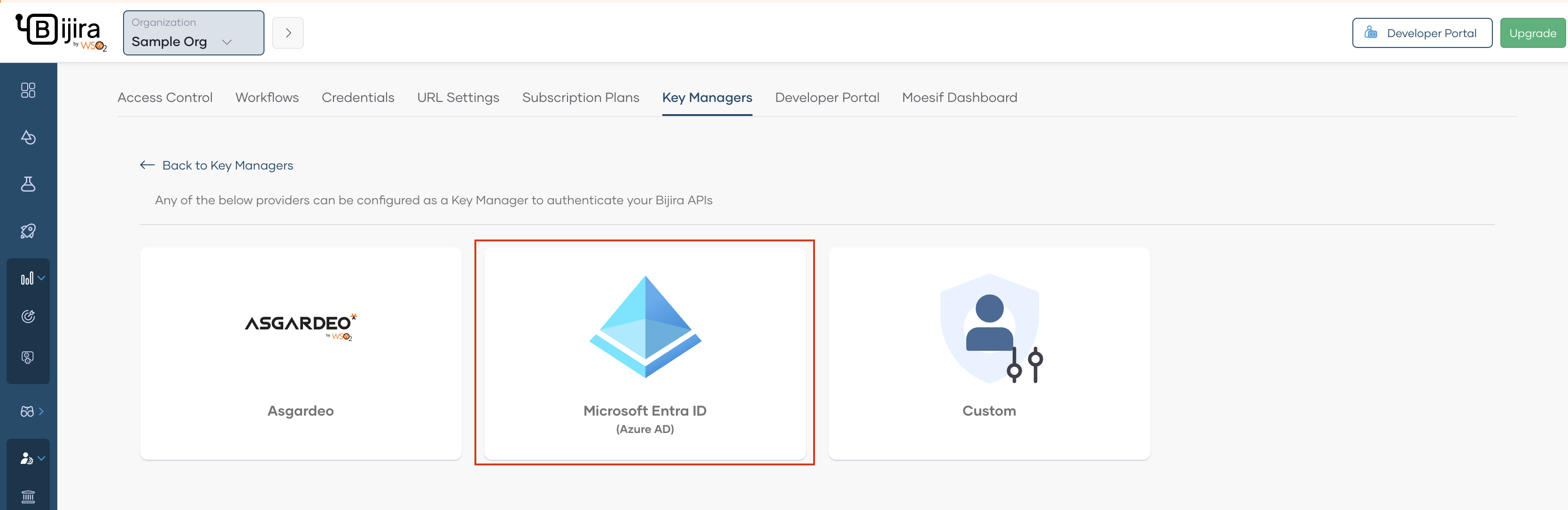
Select Microsoft Entra ID (Azure AD) as the key manager.

-
Click Microsoft Entra ID (Azure AD).
-
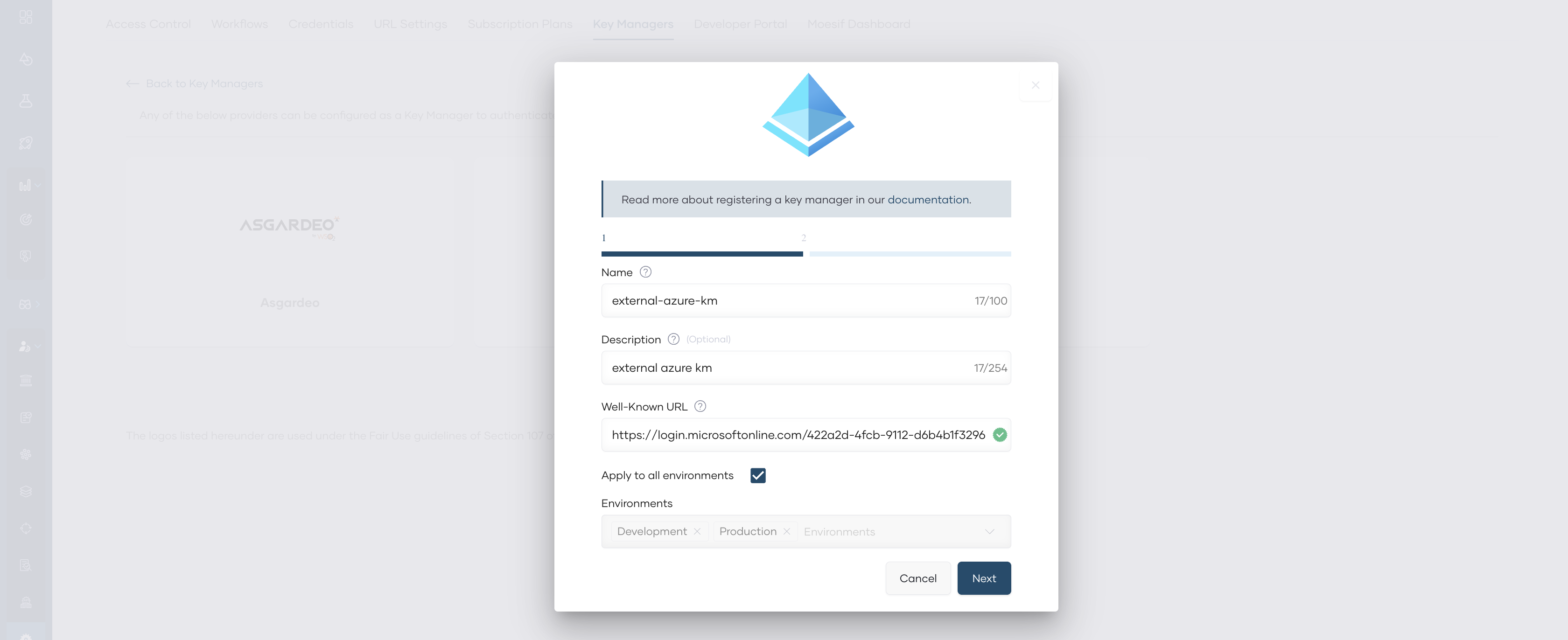
In the Azure AD dialog that opens, specify a name and a description for the key manager.
-
To obtain the
Well-Known URLof your Azure AD instance, on your Azure account, under Azure Active Directory go to App registrations, and then Endpoints. Copy the URI underOpenID Connect metadata document.Info
- In azure, there are two versions of access tokens available. By default, the key manager applications you create use the v1 access token. Therefore, if you intend to use the v1 access token, when providing the
Well-Known URL, omit the v2.0 path segment from the URL. Learn more For example, converthttps://login.microsoftonline.com/<tenant-id>/v2.0/.well-known/openid-configuration->https://login.microsoftonline.com/<tenant-id>/.well-known/openid-configuration - If you intend to work with v2.0, then the key manager application's manifest should be changed as explained in the access token documentation.
- In azure, there are two versions of access tokens available. By default, the key manager applications you create use the v1 access token. Therefore, if you intend to use the v1 access token, when providing the
-
Leave the Apply to all environments checkbox selected. This allows you to use the tokens generated via this key manager to invoke APIs across all environments.
-
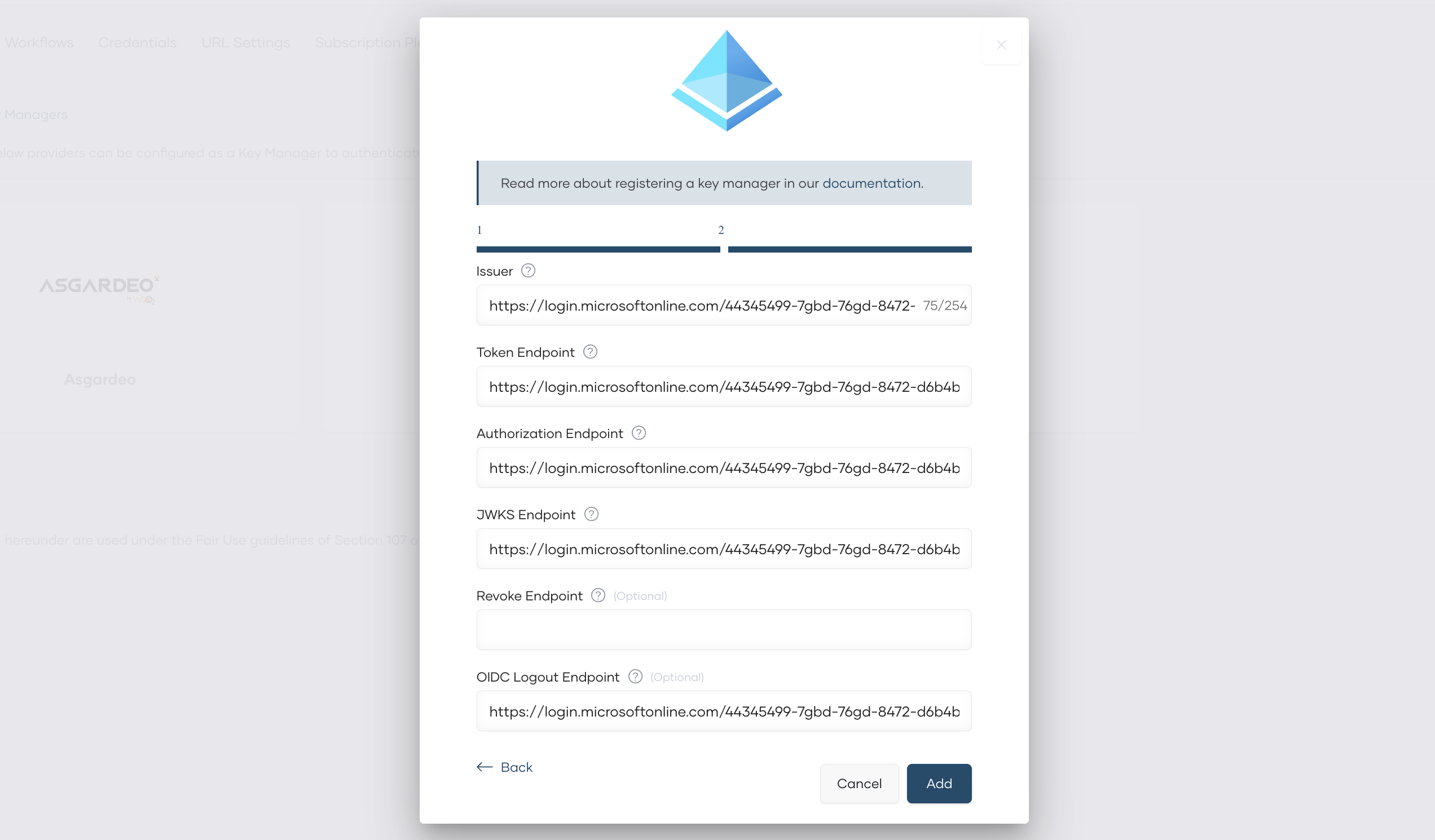
Click Next. This displays the server endpoints that are useful to implement and configure authentication for your application.
-
Click Add.
Now you have configured Azure AD as an external key manager in API Platform.

Step 2: Add Azure AD as an external key manager in API Platform Developer Portal
Once the Azure AD is configured as an external key manager in API Platform, it is necessary to configure it in the API Platform Developer Portal as well. For that, follow the steps below.
- In the left navigation menu of the API Platform Console, click Admin and then click Settings.
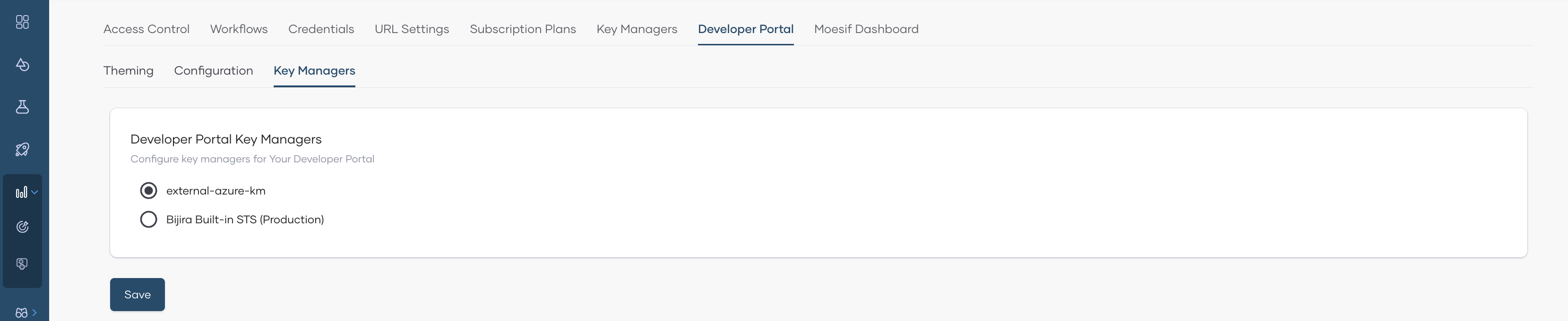
- Click the Developer Portal tab, then click the Key Managers tab. This page will list all the key managers available in API Platform.
- Select the key manager you configured at Step 1.
- Click Save.
Now you have configured Azure AD as an external key manager in API Platform Developer Portal as well.