Configure Asgardeo as an External Key Manager
Asgardeo is an identity-as-a-service (IDaaS) solution designed to create seamless login experiences for your applications. Asgardeo seamlessly integrates with API Platform, providing powerful API access control through the use of API scopes. This enables restricting API access to designated user groups. By configuring Asgardeo as an external key manager in API Platform, you can leverage your Asgardeo user stores to manage API access control effectively. This guide walks you through the steps to set up Asgardeo as your external key manager.
Prerequisites
Before you proceed, be sure to complete the following:
-
Create an Asgardeo application. You can follow the Asgardeo guide to register a standard-based application.
-
Find the well-known URL: Go to the info tab of the Asgardeo application to view the endpoints and copy the Discovery endpoint.
-
Find the Client ID: Go to the Protocol tab of the Asgardeo application and copy the Client ID.
Step 1: Add Asgardeo as an external key manager in API Platform
Follow the steps below to add Asgardeo as an external key manager in API Platform:
- Sign in to the API Platform Console at https://console.bijira.dev/.
- In the left navigation menu, click Admin and then click Settings.
- In the header, click the Organization list. This opens the organization-level settings page.
- Click the Key Managers tab.
-
To add a key manager, click + Key Manager.

-
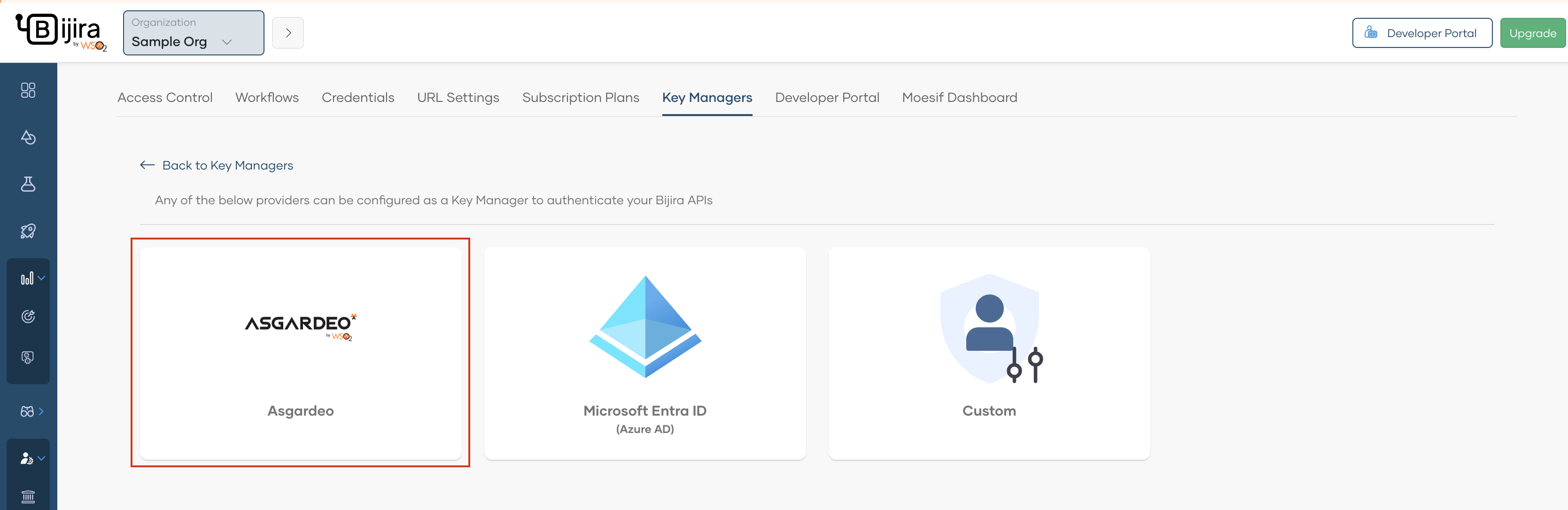
Click Asgardeo.
-
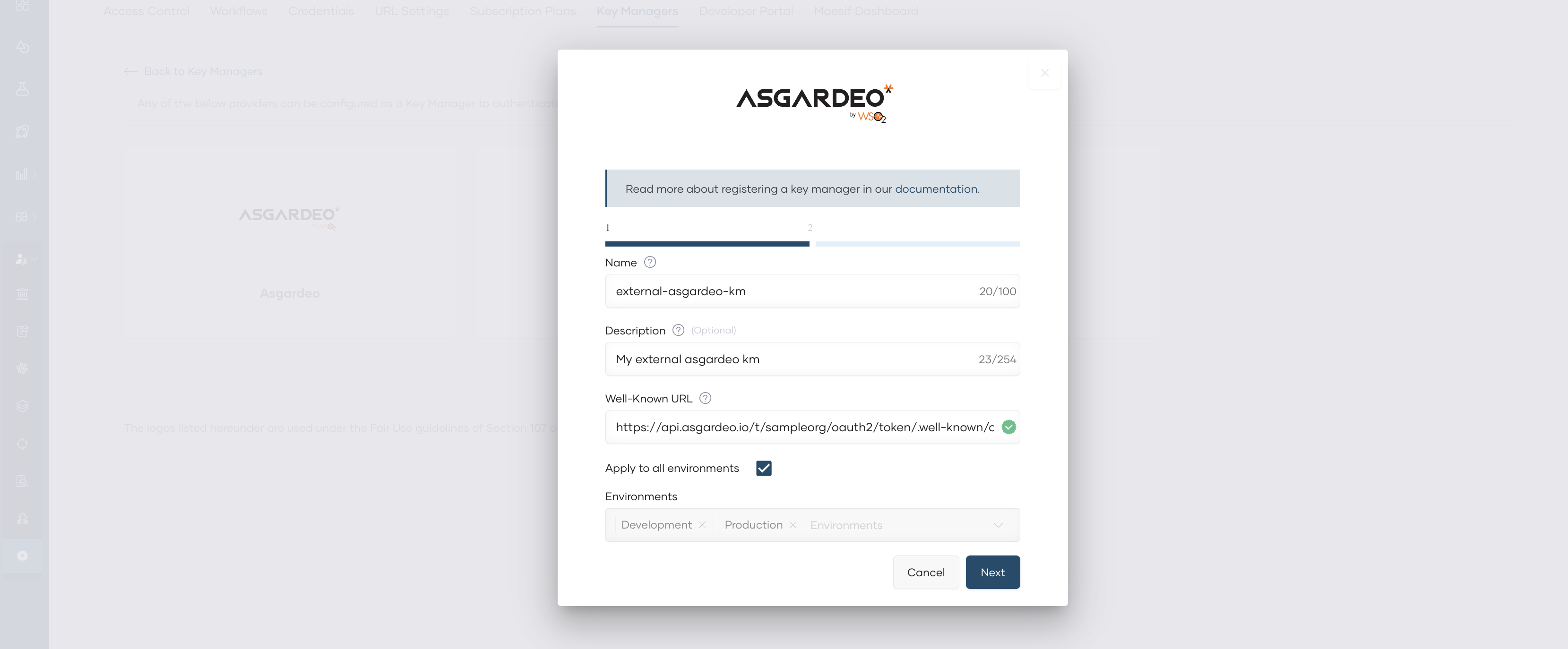
In the Asgardeo dialog that opens, specify a name and a description for the key manager.
- In the Well-Known URL field, paste the well-known URL that you copied from your Asgardeo instance by following the prerequisites.
-
Leave the Apply to all environments checkbox selected. This allows you to use the tokens generated via this key manager to invoke APIs across all environments.
-
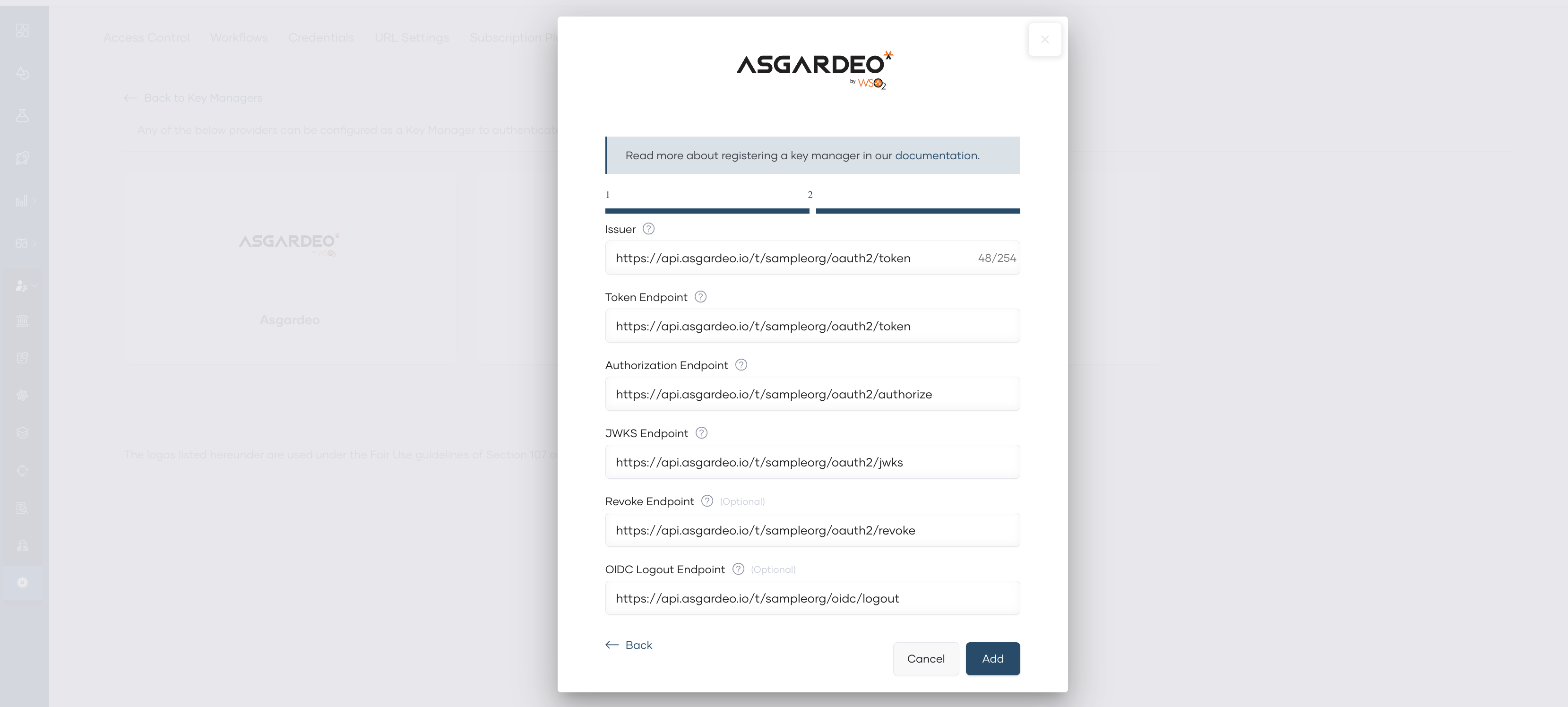
Click Next. This displays the server endpoints that are useful to implement and configure authentication for your application.
-
Click Add.
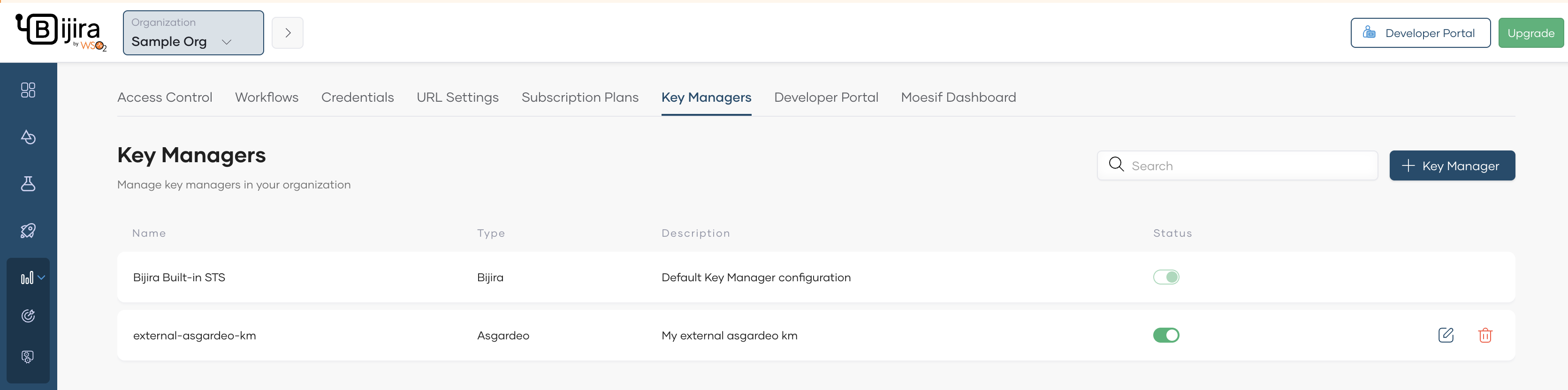
Now you have configured Asgardeo as an external key manager in API Platform.
Step 2: Add Asgardeo as an external key manager in API Platform Developer Portal
Once the Asgardeo is configured as an external key manager in API Platform, it is necessary to configure it in the API Platform Developer Portal as well. For that, follow the steps below.
- In the left navigation menu of the API Platform Console, click Admin and then click Settings.
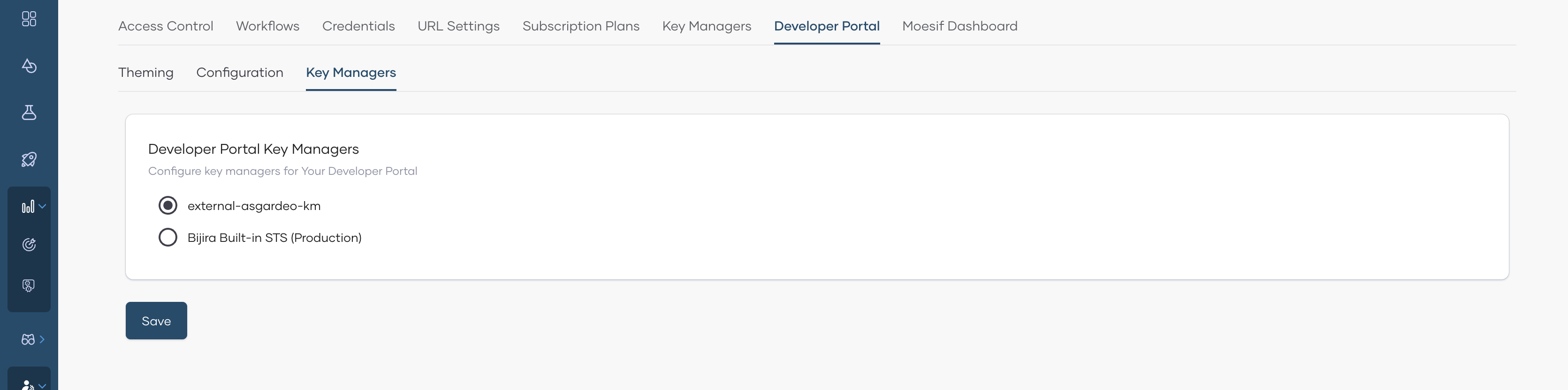
- Click the Developer Portal tab, then click the Key Managers tab. This page will list all the key managers available in API Platform.
- Select the key manager you configured at Step 1.
- Click Save.
Now you have configured Asgardeo as an external key manager in API Platform Developer Portal as well.
What Next?
To secure API access with the above-configured Asgardeo as key manager, follow the steps mentioned here.