Consume an API Secured with API Key
Prerequisites
Before proceeding, ensure you have Created an Application and Subscribed to an API to consume.
Creating an API Key
To consume an API secured with an API key, ensure that the desired API has API Key authentication enabled. Then create an application in the API Platform Developer Portal and subscribe it to the API under a defined usage policy. The API key will then be associated with that specific application.
Steps to Create an API Key
-
Ensure the desired API has API Key authentication enabled.
-
Navigate to the API Platform Developer Portal and sign in.
-
Click on Applications in the Developer Portal sidebar.
-
Click on the application to open it.
-
Subscribe to the API that has API Key authentication enabled via your application. For more information, see Subscribe to an API.
-
In the Application detail banner, click Manage Keys. This opens the Manage Keys page.
-
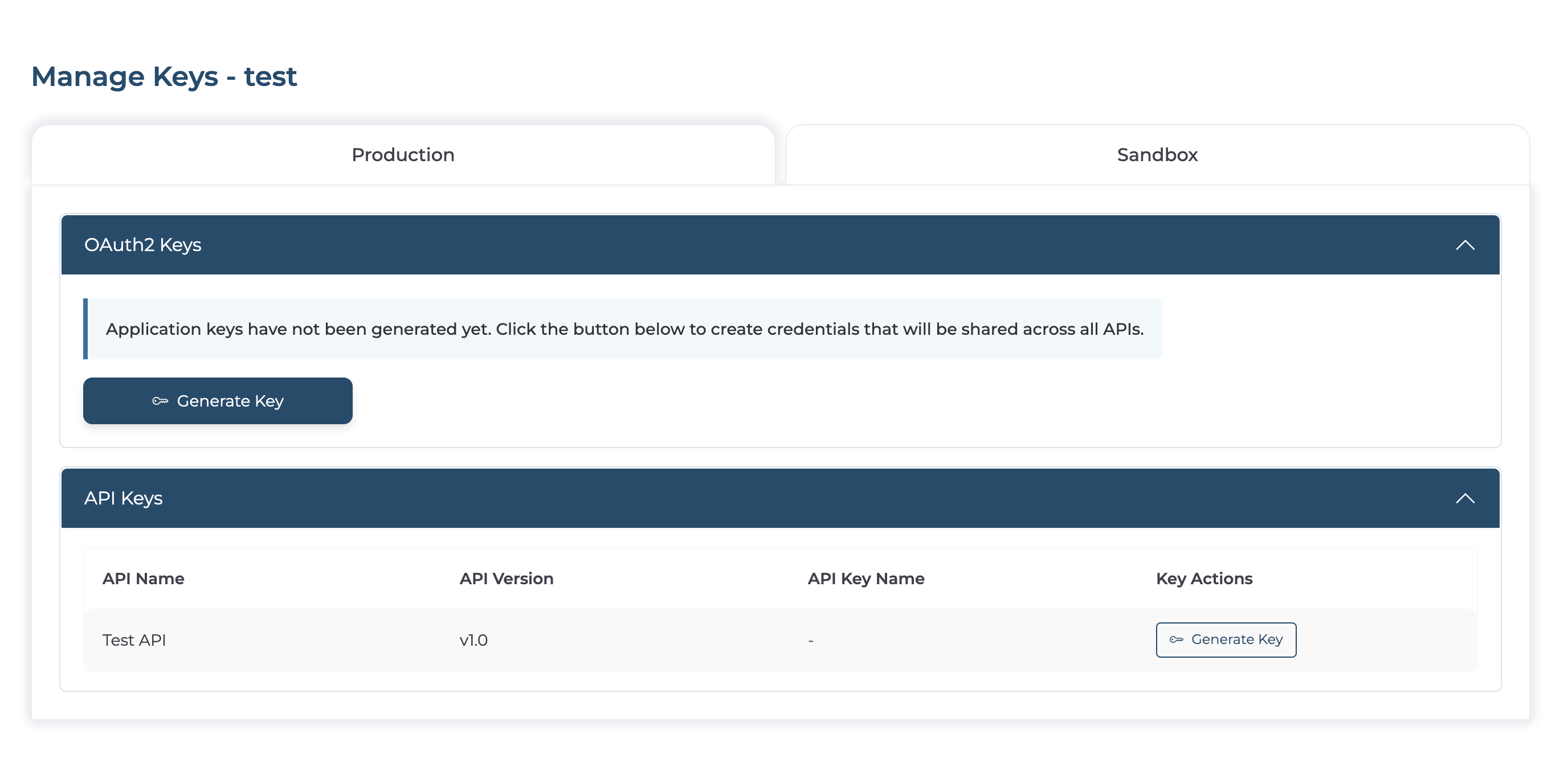
On the Manage Keys page, select either the Production or Sandbox tab based on your requirement.
Info
Sandbox keys can only be used in the sandbox environment.
-
In the API Keys section, locate the API Key enabled API that you subscribed to and click Generate Key beside it.
-
In the Generate API Key dialog that opens, enter an API Key name.
-
Click Generate and wait for the API key to be generated.
-
Copy the generated API key from the dialog and click Done to close the dialog. The API key will not be visible in the UI again after closing the dialog.
You can use the Regenerate button to generate a new API key, or the Revoke button to revoke an existing API key.
Consume an API
Use this API Key to authenticate API requests by including it in the api-key header when invoking the API.
Example: