Create an API Proxy from a GitHub Repository Source
An API proxy acts as an intermediary between an existing API and API Platform, intercepting all requests made to the API. It also functions as a managed API, allowing you to apply essential API management features such as security policies and rate limiting.
Prerequisites
-
If you're signing in to the API Platform Console for the first time, create an organization:
- Go to API Platform Console and sign in using your preferred method.
- Enter a unique organization name. For example,
Stark Industries. - Read and accept the privacy policy and terms of use.
- Click Create.
This creates the organization and opens the Project Home page of the default project created for you.
-
Fork the API Platform samples repository, which contains the sample proxy source.
Configure component.yaml
When creating an API proxy from a GitHub repository, you must include a component.yaml configuration file in your repository. This file must be located at .choreo/component.yaml within your API directory.
Required Configuration
The component.yaml file for API proxies must include the following structure:
Configuration Fields
| Field | Required | Description |
|---|---|---|
proxy.type |
Required | The type of API proxy. Supported values are: - REST - For REST APIs (uses OpenAPI specification) - WS - For WebSocket APIs (uses AsyncAPI specification) |
proxy.schemaFilePath |
Required | The path to your API specification file relative to the API directory. For REST APIs, this should point to your OpenAPI specification file (e.g., openapi.yaml). For WebSocket APIs, this should point to your AsyncAPI specification file (e.g., asyncapi.yaml). |
Note
The component.yaml file must be present in the .choreo directory within your API directory for API Platform to successfully build and deploy your API proxy from GitHub.
Step 1: Create an API proxy
You can create an API proxy either by selecting the source from a GitHub repository, uploading an OpenAPI specification file, or providing an OpenAPI specification URL. This guide demonstrates how to create an API proxy using a GitHub repository as the source.
- Go to the API Platform Console and sign in. This opens the project home page.
- If you already have one or more components in your project, click + Create. Otherwise, proceed to the next step.
- Select Import API Contract and click on GitHub tab.
-
Click on Authorize With GitHub card under Connect a Git Repository section to connect your GitHub account.
- If you haven’t connected your GitHub repository to API Platform, enter your GitHub credentials and select the repository you forked in the prerequisites section to install the API Platform GitHub App.
Note
The API Platform GitHub App requires the following permissions: - Read and write access to code and pull requests. - Read access to issues and metadata.
You can revoke access if needed. Write access is only used for sending pull requests; API Platform will not push changes directly to your repository.
Note
If you are the owner of the GitHub organization and need to authorize the API Platform GitHub App on behalf of your collaborators, you can install the API Platform GitHub App directly in your organization via install App.
-
Enter the following repository details:
Field Value Organization Your GitHub account Repository bijira-samples Branch mainAPI Directory /reading-list-api 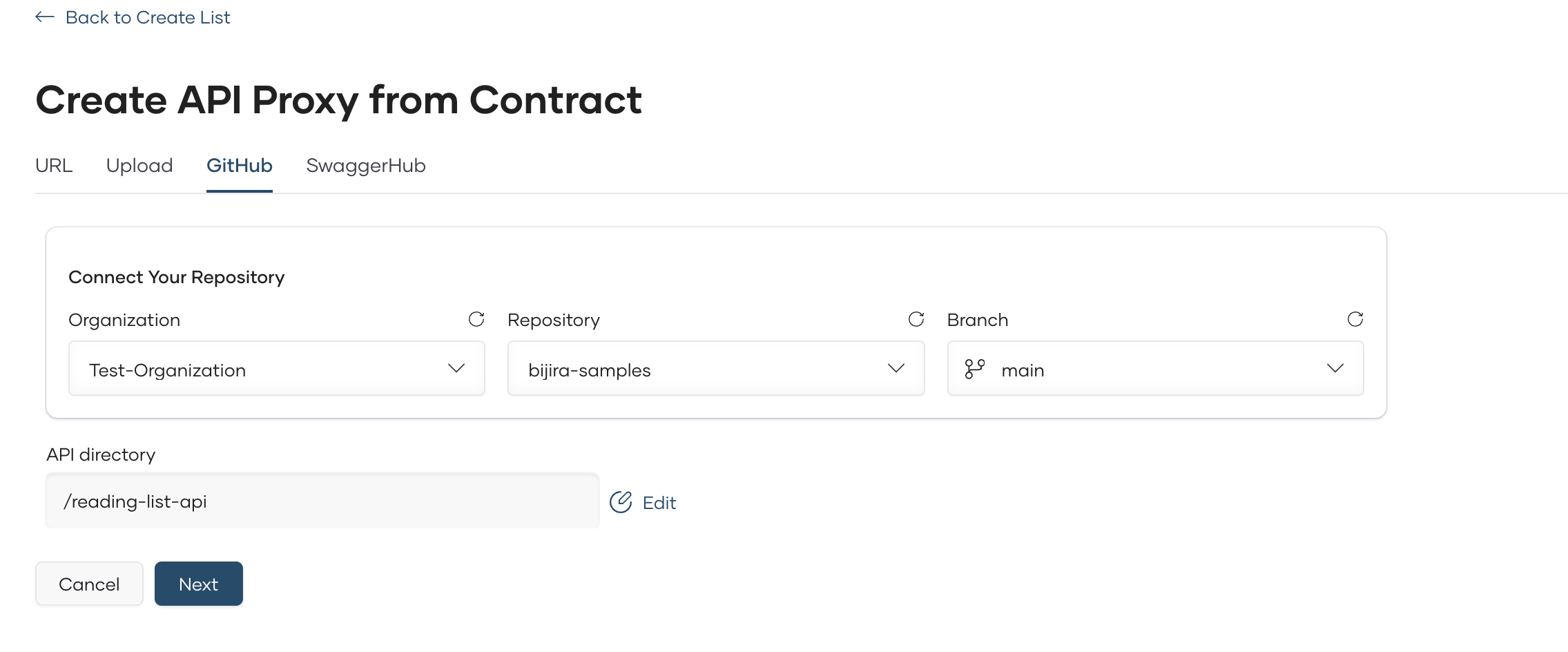
Note
To select the relevant directory, click on the Edit action next to the API Directory input field. Then, enter
reading-list-apias the directory name to quickly search and locate the correct directory. -
Specify the following values as Proxy Metadata:
Field Value Name Reading List APIVersion 1.0Target https://apis.bijira.dev/samples/reading-list-api-service/v1.0 -
Click Create. This creates the API proxy component and takes you to the Overview page.
Note
The API contract cannot be modified after proxy creation. Therefore, any changes to the API contract in the GitHub repository will not apply to the created proxy.
Step 2: Build and Deploy the API proxy
Info
A build starts automatically when you create the API proxy, and you will be redirected to the Overview page.
- In the left navigation menu, click Deploy.
- If the build is in progress, you can view the Build information.
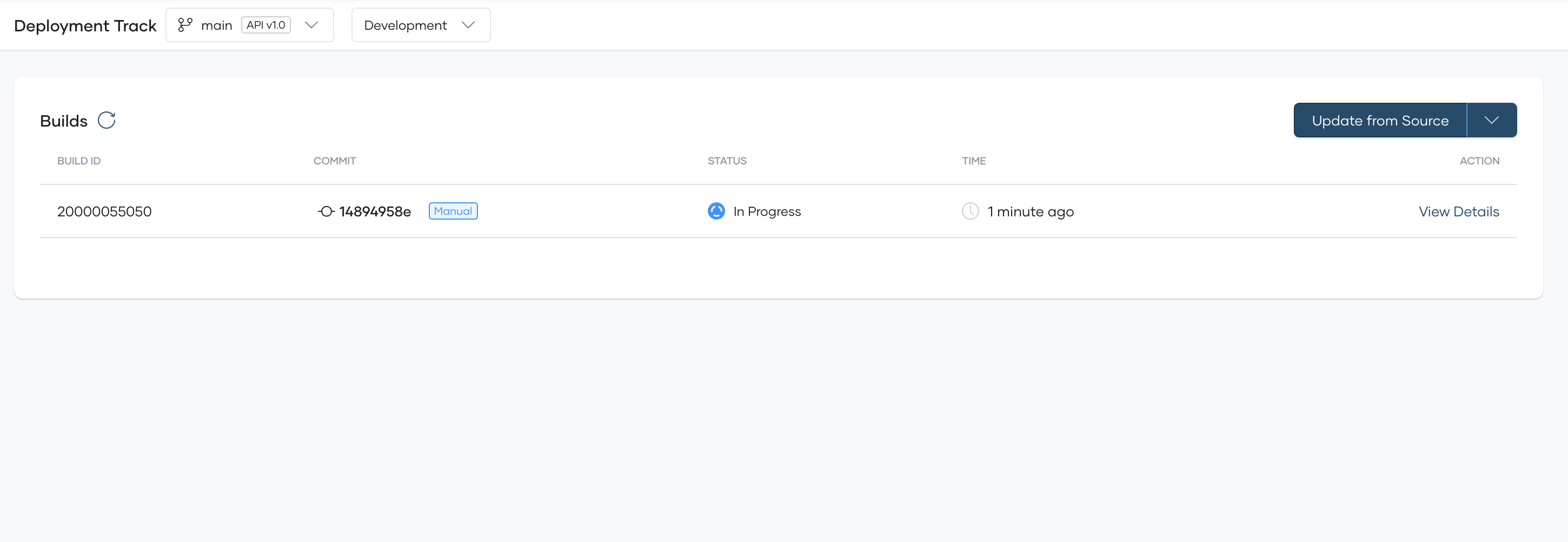
3. Once the build is completed, in the deploy navigation menu, in the Build Area card, click Configure & Deploy.
This opens the Configure & Deploy pane.
4. Select External as the API Access Mode and click Deploy. The Development card indicates the Deployment Status as Active when the API proxy is successfully deployed.
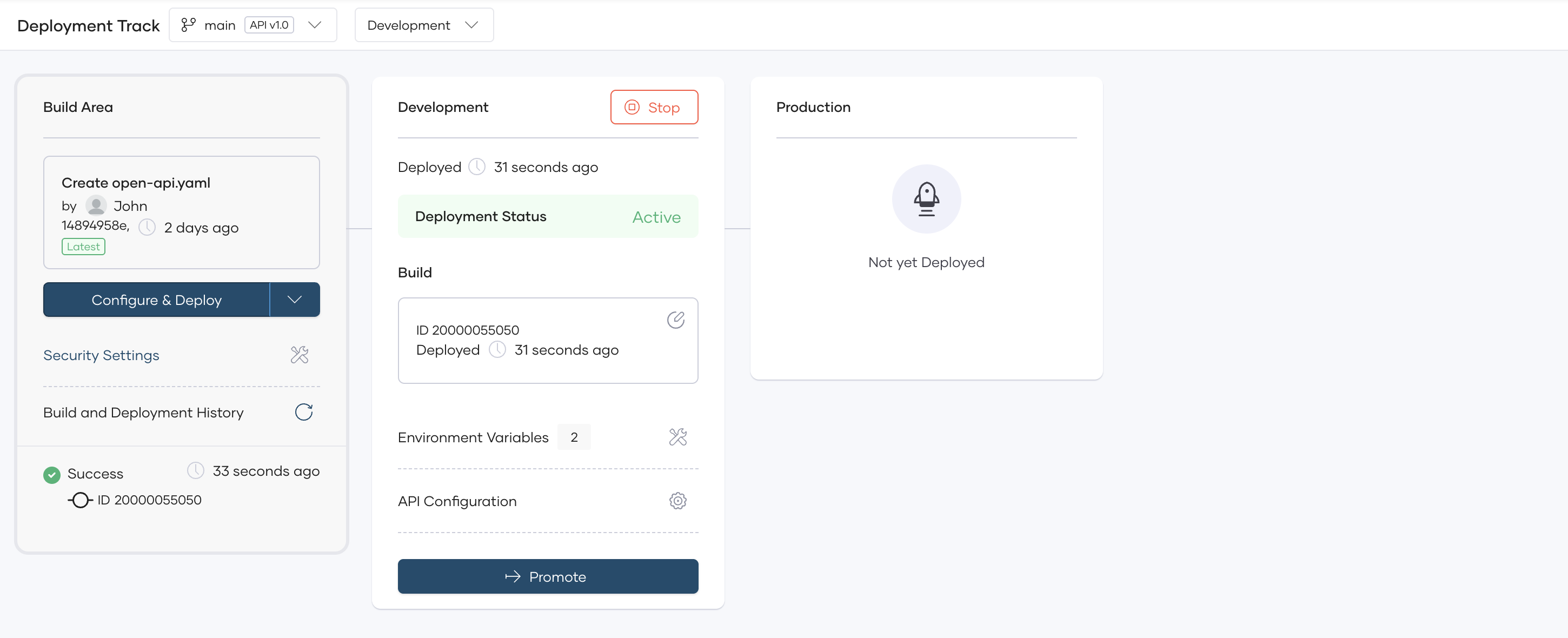
Now, you are ready to test the API proxy. You can test the API via the OpenAPI Console provided in API Platform