Configure Custom External Key Manager
If your organization uses Asgardeo or Microsoft Azure Active Directory (Azure AD) as a key manager follow the platform-specific guides below to add them as an external key manager in API Platform.
If you use any other Key manager, you can still integrate it with API Platform provided it supports standard OIDC/OAuth2 endpoints. Integrating a custom key manager allows you to enforce API access using scopes and restrict access to specific user groups. This guide walks you through the steps to set up the external key manager.
Prerequisites
Before you try out this guide, be sure you have the following:
- The key manager's
Well‑Known URL(to import configuration automatically). - Administrator access to your API Platform organization and to the key manager.
Step 1: Add custom external key manager in API Platform
Follow the steps below to add a custom key manager in API Platform:
- Sign in to the API Platform Console at https://console.bijira.dev/.
- In the left navigation menu, click Settings.
- In the header, click the Organization list. This will open the organization level settings page.
-
On the Key Managers tab, click + Key Manager.

-
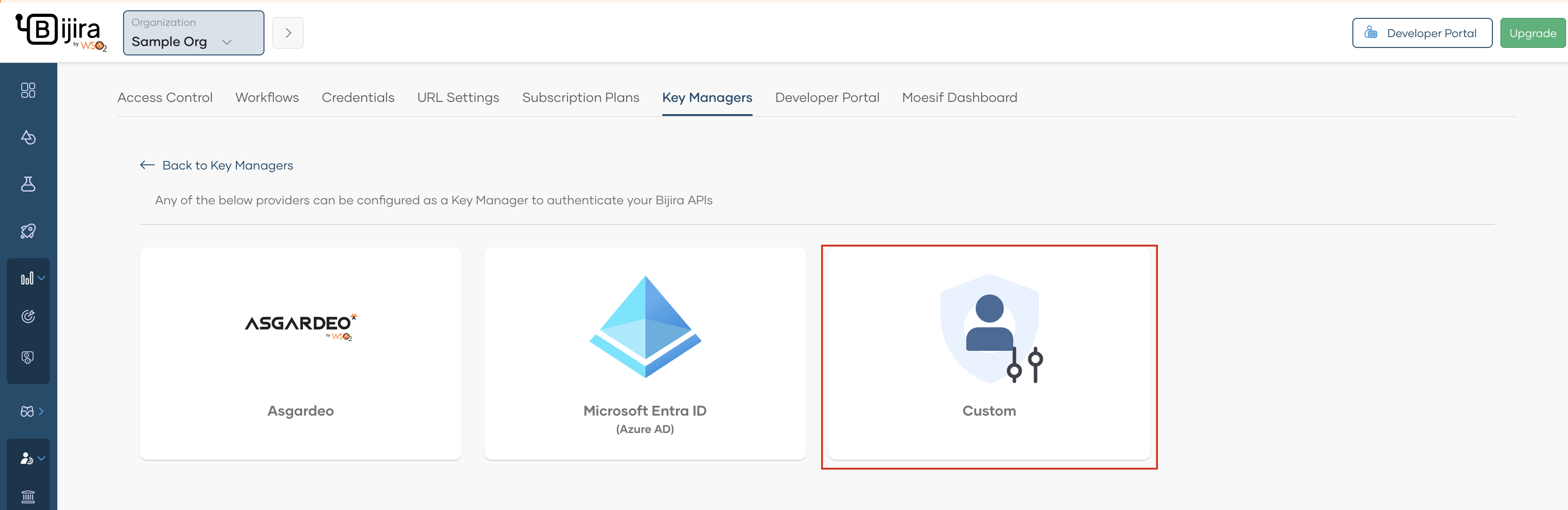
Select Custom as the key manager.
-
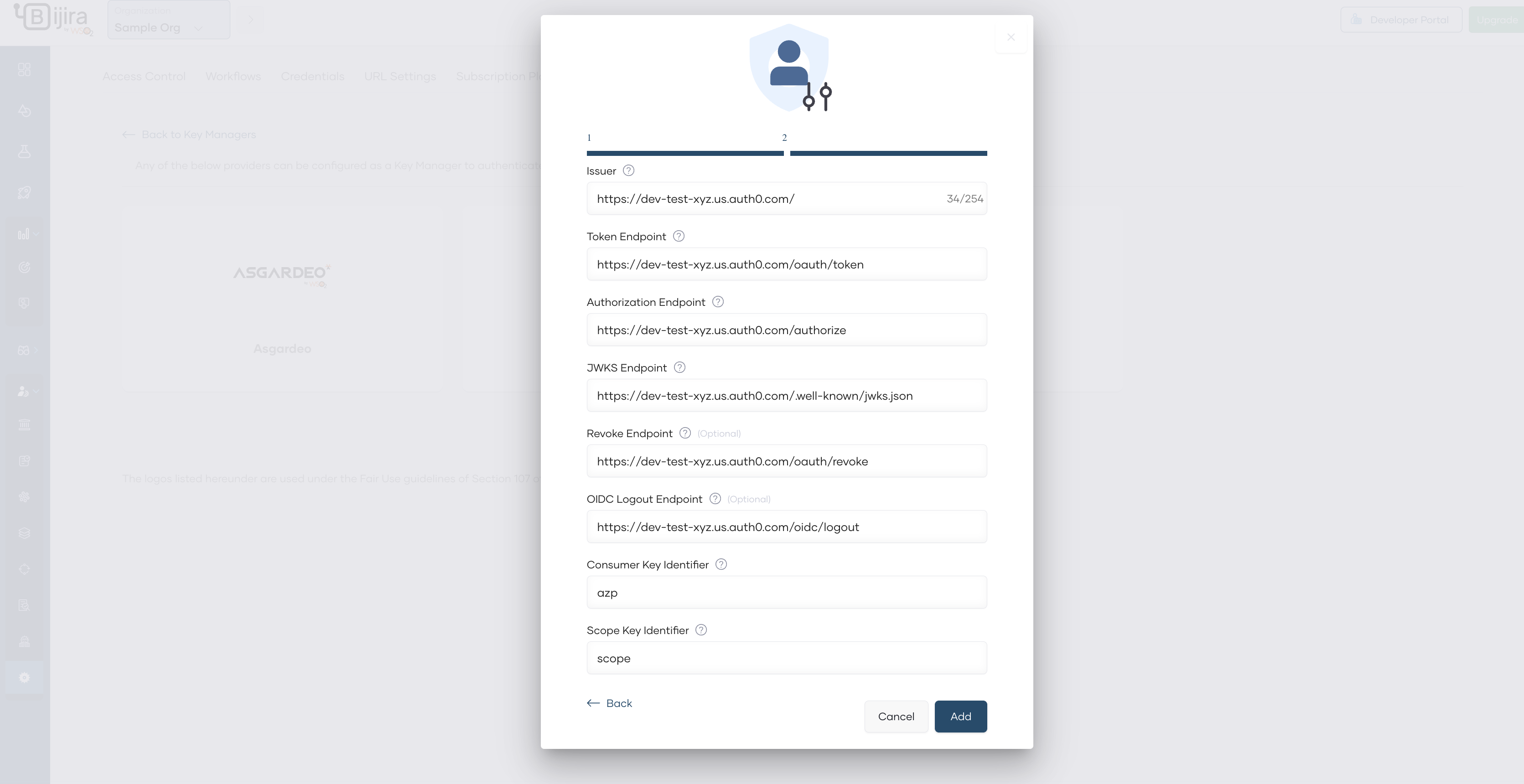
Provide a name and a description for the key manager.
- Obtain the
Well-Known URLof your key manager and Provide it under Well-Known URL. -
Leave the Apply to all environments checkbox selected. However, if you want to restrict the use of the external key manager to a certain environment, you can select them from the Environments list.
-
Click Next.
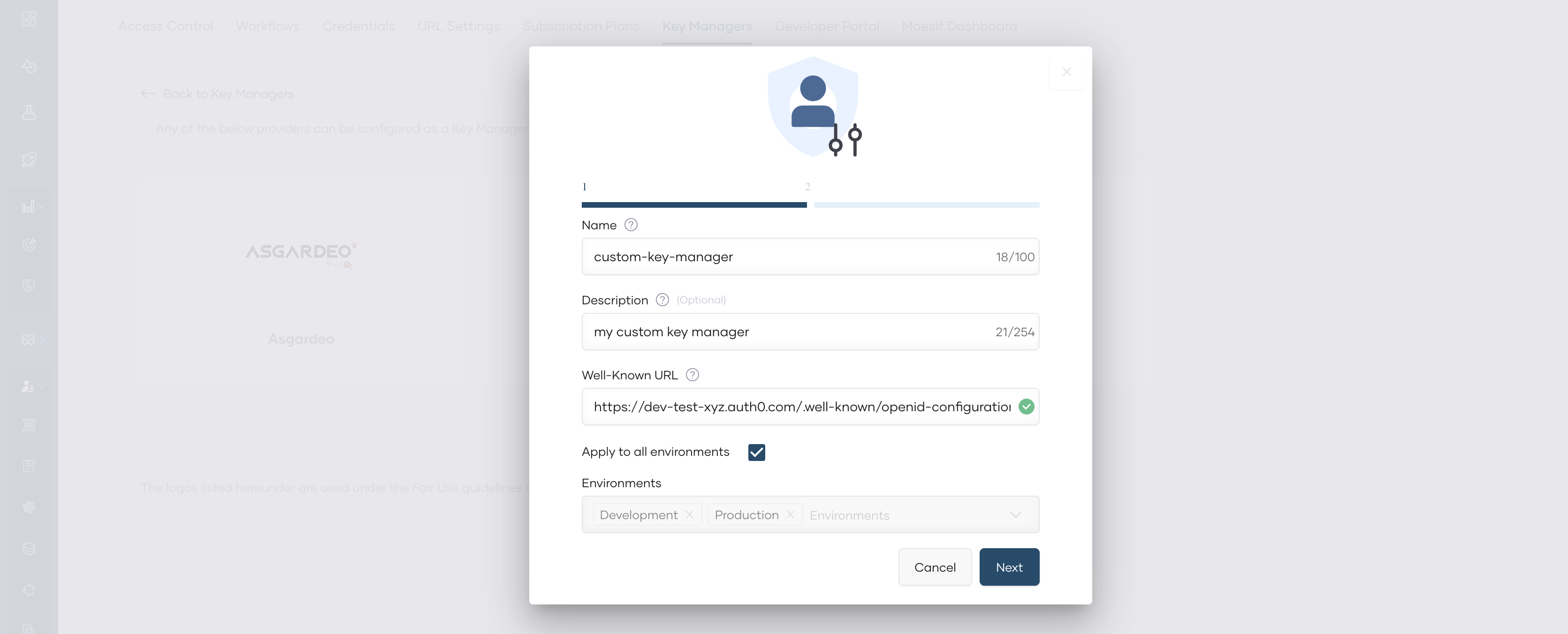
- The next page will list all the relevant configurations extracted from the
Well-Known URL. Review the configurations and click Add.
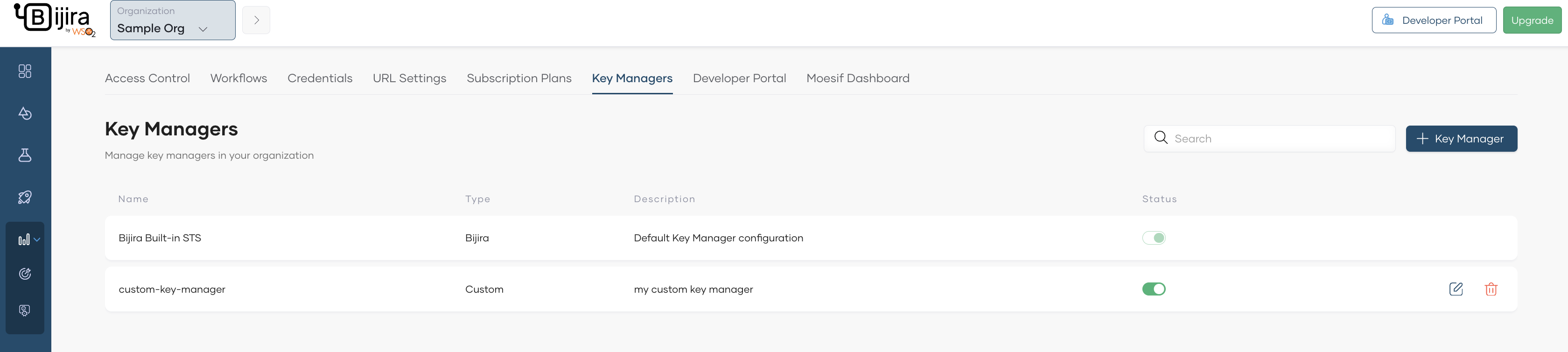
Now you have configured your custom key manager as an external key manager in API Platform.
Step 2: Add the external key manager in API Platform Developer Portal
Once the key manager is configured as an external key manager in API Platform, it is necessary to configure it in the API Platform Developer Portal as well. For that, follow the steps below.
- In the left navigation menu of the API Platform Console, click Admin and then click Settings.
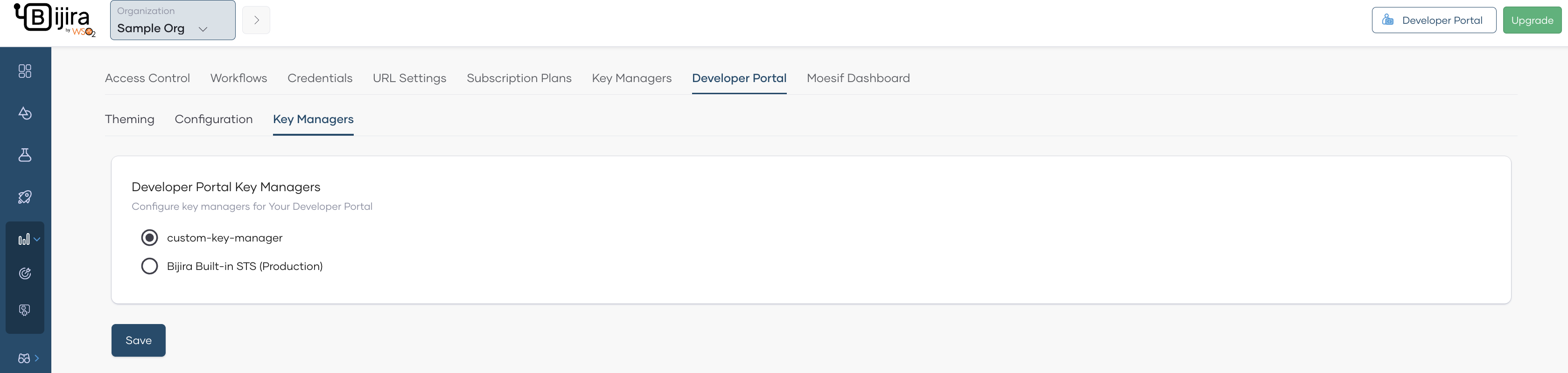
- Click the Developer Portal tab, then click the Key Managers tab. This page will list all the key managers available in API Platform.
- Select the key manager you configured at Step 1.
- Click Save.
Now you have configured your key manager as an external key manager in API Platform Developer Portal as well.
What Next?
To secure API access with the above-configured key manager follow the steps mentioned here.