Configure LLM Provider
LLM Providers allow you to connect AI service platforms like OpenAI, Anthropic, and others to the AI Workspace. Once configured, these providers serve as the backend for your LLM Proxies, enabling you to route requests through a managed gateway with built-in security, rate limiting, and guardrails.
Prerequisites
- Access to API Platform Console with Admin role
- At least one AI Gateway created and set up
- API credentials for your LLM provider (API key, access tokens, etc.)
Add a New Provider
- Navigate to AI Workspace in your API Platform dashboard.
- Select Service Providers from the menu.
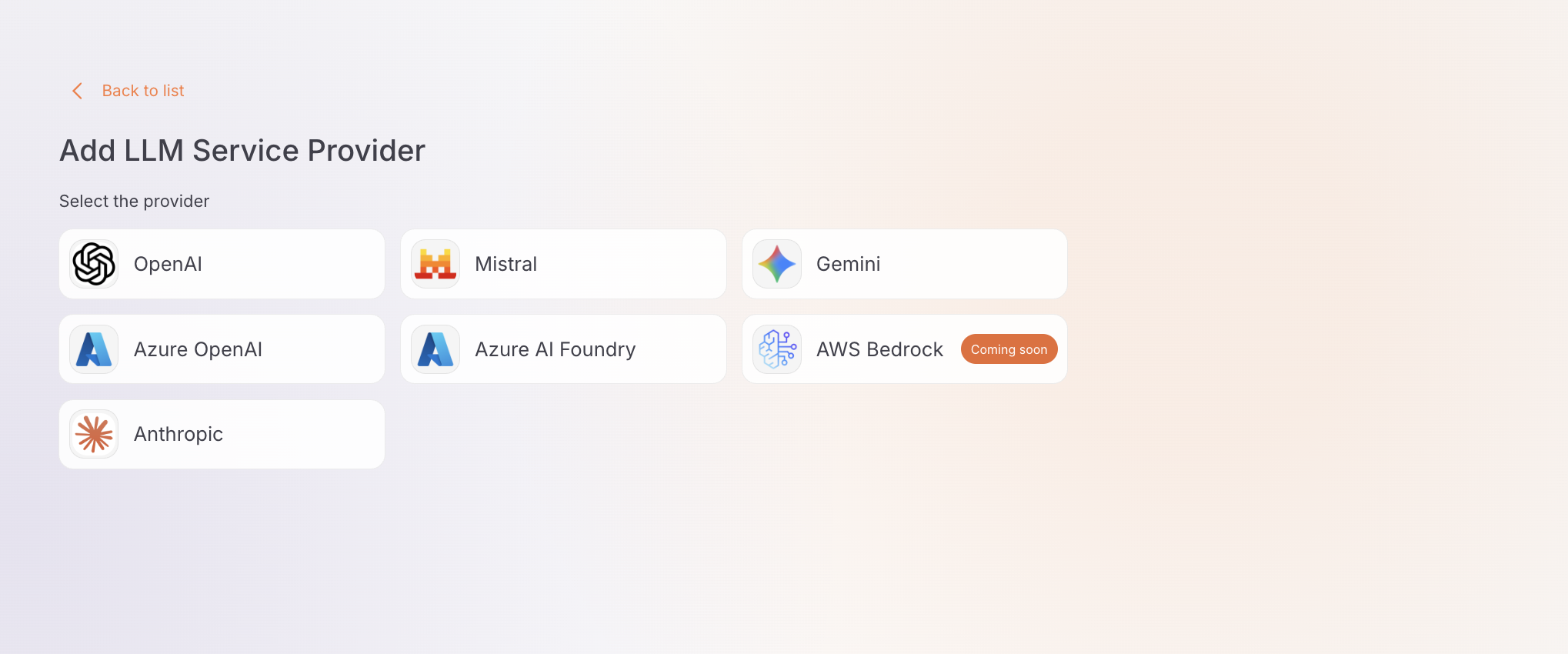
- Click + Add New Provider and choose your provider type (e.g., OpenAI, Anthropic).
Configure Provider Details
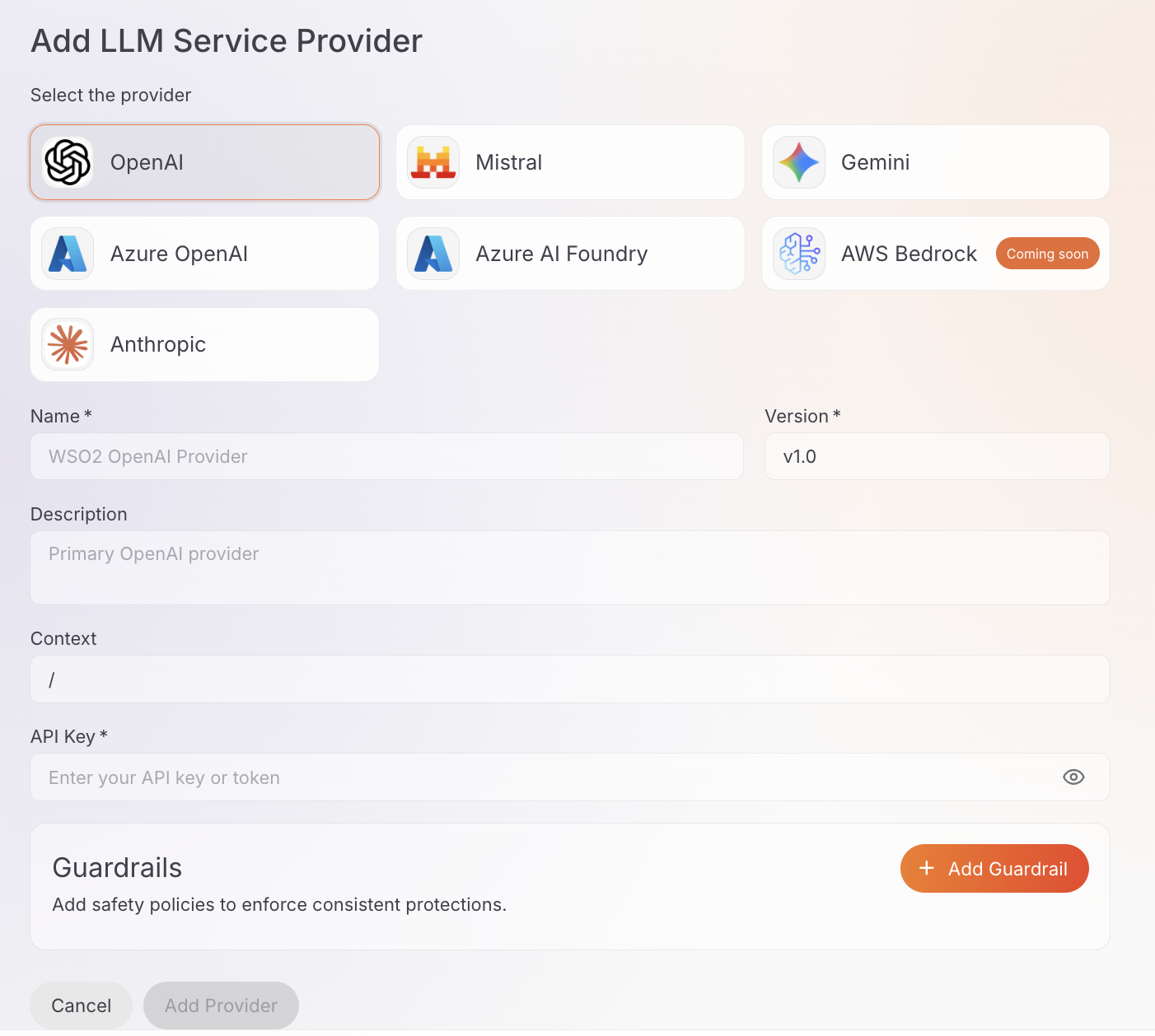
After selecting your provider type, fill in the provider configuration form:
Basic Information
-
Name* (Required): Enter a unique name for the provider (e.g.,
openai-production,anthropic-dev). -
Version* (Required): The version is pre-filled (e.g.,
v1.0). You can edit this if needed. -
Description (Optional): Add a description to identify the provider's purpose.
-
Context (Optional): Enter the context path (default:
/). This is the base context for the provider.
Authentication
The authentication fields vary depending on the provider you selected:
API Key* (Required): Enter your OpenAI API key (starts with sk-proj- or sk-).
Info
OpenAI's endpoint URL is pre-configured automatically.
API Key* (Required): Enter your Anthropic API key (starts with sk-ant-).
Info
Anthropic's endpoint URL is pre-configured automatically.
API Key* (Required): Enter your Google AI API key.
Info
Gemini's endpoint URL is pre-configured automatically.
API Key* (Required): Enter your Mistral AI API key.
Info
Mistral AI's endpoint URL is pre-configured automatically.
- Upstream URL* (Required): Enter your Azure OpenAI resource endpoint (e.g.,
https://your-resource.openai.azure.com/). - API Key* (Required): Enter your Azure OpenAI API key.
- Upstream URL* (Required): Enter your Azure AI Foundry endpoint URL.
- API Key* (Required): Enter your Azure AI Foundry API key.
Add Guardrails (Optional)
You can attach policies and guardrails to your provider that apply to all requests:
-
In the Guardrails section of the form, click + Add Guardrail.
-
A sidebar will open showing available guardrails and policies.
-
Click on a guardrail to select it and configure its settings.
-
Click Add to attach it to the provider.
Advanced Settings
Each guardrail includes advanced configuration options that allow you to fine-tune its behavior. After selecting a guardrail, you can configure these settings before attaching it to the provider.
Info
Learn more about available guardrails in the Guardrails Overview. For the full list of policies and their specifications, visit the Policy Hub.
Save Provider
-
After configuring all settings and adding guardrails (if needed), click Add Provider.
-
You'll see a confirmation message indicating the provider was created successfully.
-
The provider will appear in the providers list.
Deploy Provider to Gateway
After creating your provider, you must deploy it to a gateway before it can be used.
Required Step
Your provider will not be functional until it is deployed to at least one gateway.
-
Click the Deploy to Gateway button in the top right corner.
-
Click Deploy on one or more gateways from the available list.
-
Wait for the deployment to complete. The status will change to Deployed.
Get Started
Once the provider is deployed, the provider details page shows the Invoke URL on the left and a Get Started panel on the right.
Invoke URL
Select a gateway from the Gateways dropdown to see the base URL for accessing this provider through that gateway.
API Keys
Generate an API key to authenticate requests to the deployed gateway.
- Click Generate API Key in the Get Started panel.
- Copy and save your API key immediately.
Important
API keys are only displayed once. Store it in a secure location immediately — you will not be able to retrieve it again.
Deployed Gateways
The Deployed Gateways section lists all gateways this provider is deployed to, along with the host address and deployment status.
Next Steps
- Configure LLM Proxy - Configure and deploy a proxy endpoint using your provider
- Manage Provider - Configure access control, security, rate limiting, and more